Panel reference
Bed Level panel
Manual screw-adjust + automated bed alignment
Where More → Bed Level
Controls 5
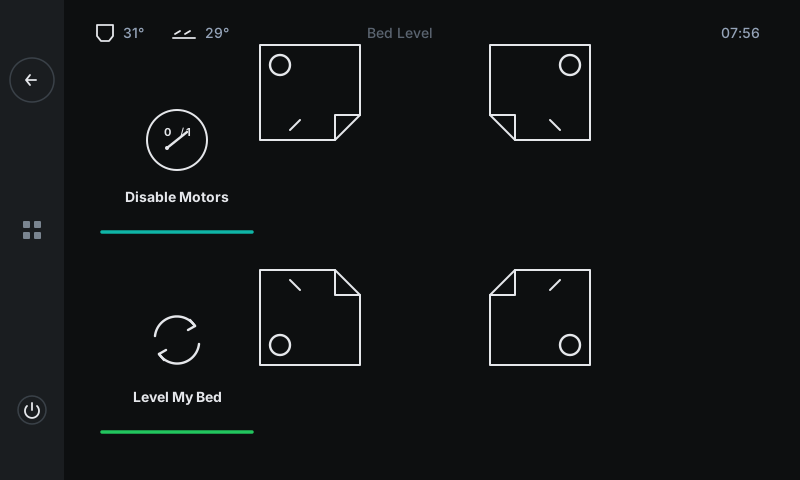
Two workflows. Level My Bed (left button) runs the automated screws-tilt-adjust / Z-tilt routine — the printer probes each screw position and either auto-corrects (multi-Z machines) or tells you which screws to turn. The 3 × 3 bed-screw grid on the right shows the physical layout of the bed from above: tap any icon to drive the toolhead over that screw for hand-tweaking. Only cells matching real screws in screws_tilt_adjust are populated — on a 4-corner bed (like the QALAM) you see only the four corners, with the middle row and column blank.
1
2
3
4
5
1
Disable Motors
Free the steppers for hand-jog.
Transparent button styled with the cyan 'color3' accent underline. Sends M18 — all stepper motors stop holding position so you can push the toolhead by hand. Useful before mechanical adjustments under the bed. After tapping this, the axes are 'unhomed' — you'll need to home again before printing or running the level routine.
2
Level My Bed
Automated bed alignment.
Transparent button styled with the green 'color4' accent underline. Runs SCREWS_TILT_CALCULATE (single-Z machines) or PROBE_ALL_SCREWS_SEQUENTIAL (multi-Z). Probes every screw position, computes how far each is from the reference, and either applies the correction automatically (Z-tilt machines like QALAM) or annotates each screw icon with how far to turn that screw (single-Z machines). Takes 30–60 seconds.
3
Bed-corner grid
Four icon buttons, one per screw.
Right area shows one icon per bed screw, arranged to match the physical layout when looking down at the bed from above. The QALAM has four corner screws → 2×2 grid of icons. Each icon is a 3D-perspective drawing of one corner with a circle marking the screw. Tap an icon to drive the toolhead over that screw so you can twist the knob underneath without bending awkwardly.
4
Back-left / Back-right
Top row of the grid (rear corners).
The two screws nearest the back wall of the printer (away from the operator). Same icon style as the front ones — just rotated to show the relevant corner. After Level My Bed runs on a single-Z machine, each icon also displays a rotation hint (e.g. 'CW ¼ turn').
5
Front-left / Front-right
Bottom row of the grid (operator-side corners).
The two front corners (nearest to whoever's standing in front of the printer). Same icon convention. On a Z-tilt machine, after Level My Bed the icons stay decorative — the correction was applied automatically without you twisting anything.
Good to know
- Bed levelling (this panel) gets the bed plane parallel to the gantry. Bed meshing (separate panel) compensates for surface bow that survives levelling. You typically do both: level first, then mesh.
- How many cells in the 3 × 3 grid are populated depends on your
screws_tilt_adjust config — 3, 4, 6, or 9 screws are all supported. The grid auto-places each screw at its corresponding row/column based on its real-world coordinates.
- On 3DISM QALAM (with three independent Z motors), Level My Bed uses
Z_TILT_ADJUST and applies the correction automatically — you rarely need to manually twist a knob unless the bed is mechanically warped beyond ±0.3 mm.