Walkthrough · 01
Tune live during a print
Live Z adjust, speed, flow, and more — without stopping
The first layer is too close to the bed. The walls are over-extruding. The fan is screaming and you wish it was quieter. All of these are fixable mid-print without cancelling and re-starting — that's what the Fine Tune panel is for. This guide covers the most common one (live Z adjust) and gives you a quick tour of the other five live tunables.
Step 1 — Open Fine Tune from a running print
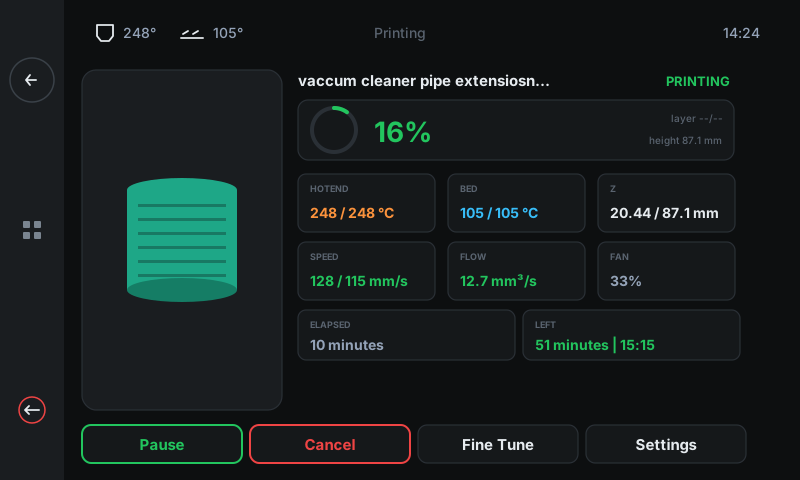
Fine Tune is only useful during an active print, so it lives on the Job Status screen. While the printer is running, the bottom action row has four buttons — tap Fine Tune (third from the left) to open the live-tune panel.
You can come back to Job Status any time by tapping the back arrow on the side panel. The print keeps running the whole time.
-
1
Fine Tune buttonThird button in the action row. Opens the live-tune panel. The print never stops — every change you make is applied live to the running job.
Step 2 — The Fine Tune panel
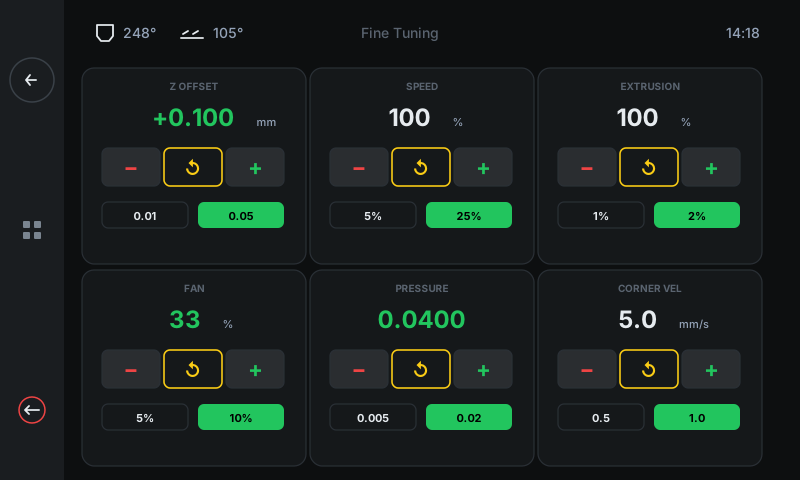
Six big cards, each one controlling a different live tunable. Every card has the same shape: a title, the current value, a − button to step down, a ↺ (reset) button in the middle, and a + button to step up. The two pills below let you switch between a fine step (left) and a coarse step (right) — the green pill is the one you'll use when you tap ±.
-
1
Z OFFSETLive first-layer height. The main reason people open this panel. Step ±0.01 mm or ±0.05 mm at a time. Negative = closer to bed.
-
2
SPEEDOverall print speed factor. 100 % = whatever the slicer set. Drop to 50 % to slow down a risky bridge; bump to 130 % on chunky infill.
-
3
EXTRUSIONFlow factor. Walls look gappy? Bump to 102 %. Over-extruding blobs? Drop to 98 %. Small changes go a long way.
-
4
FANPart-cooling fan. Increase for bridges and overhangs; decrease for ABS so it doesn't warp.
-
5
PRESSURE (Advance)Compensates for the extruder's slight delay when stopping / starting. Higher value = sharper corners and less stringing.
-
6
CORNER VELHow fast the toolhead is allowed through sharp corners. Lower = smoother, slower; higher = faster, may ring.
Step 3 — Live Z adjust (the most common one)
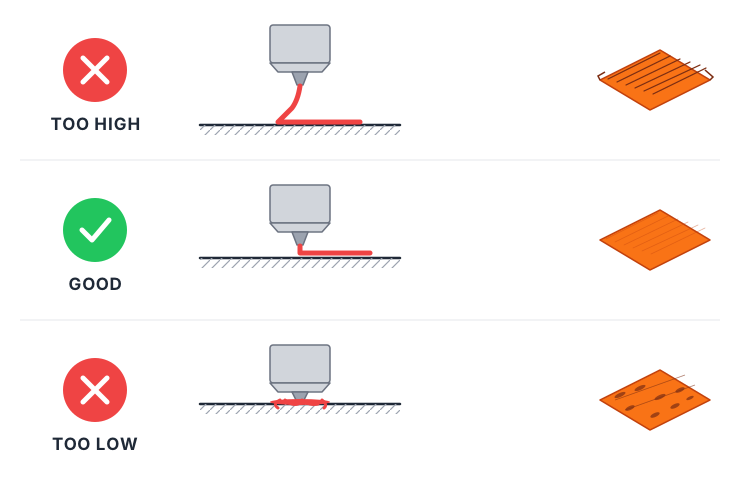
Diagnosing first-layer Z offset by eye. Watch the first 2–3 layers — that's where the difference shows clearest.
Z offset is the gap between the nozzle and the build plate on the first layer. Get it wrong by even a tenth of a millimetre and your print either won't stick (too high) or scars the build sheet (too low). The reference above shows what each state looks like — at the nozzle and on the finished surface.
Use the buttons on the Z OFFSET card to fix what you see:
• Surface looks like the TOO HIGH row (gaps between lines, corners lifting)? Tap − to drop the nozzle closer.
• Surface looks like the TOO LOW row (glassy, scratched, squished blobs)? Tap + to lift the nozzle.
Pick a step size with the two pills at the bottom of the card: 0.01 for fine touch-ups during a print, 0.05 for a bigger reach when you're really off. The value on the card updates instantly and the correction shows up on the very next layer.
Step 4 — Reset a value back to its default
Tapped + one too many times? Press the ↺ reset button (middle of each card's button row). Z OFFSET resets to 0, SPEED and EXTRUSION reset to 100 %, FAN resets to 0 %, and PRESSURE / CORNER VEL reset to whatever the printer started this print with.
Each card resets independently, so a wild ride on extrusion doesn't lose your Z offset work.
Step 5 — Making a Z offset stick permanently
Fine Tune is a per-print tweak. The Z offset you nailed during a print resets to zero when the printer reboots — fine for one-off corrections, frustrating if you've found the magic number for a freshly-installed build plate.
To save it for every future print, finish the current print, then from the Job Status panel tap Settings → Save Z (Probe). That bakes the current offset into the printer's saved config and reboots Klipper. Done — every print from then on starts at that height.