1
Temperature
Heater control + presets.
Opens the Temperature panel — set or clear targets for the hotend, bed, and chamber, plus material presets.
Panel reference
Secondary controls
Eight tiles in a 4 × 2 grid for the less-frequent controls. Most operators visit More once during initial setup (bed mesh, input shaper calibration) and then rarely again. The exception is Resume Print, which is highlighted with a green border so it stands out as the only action tile in the set — everything else is navigation.
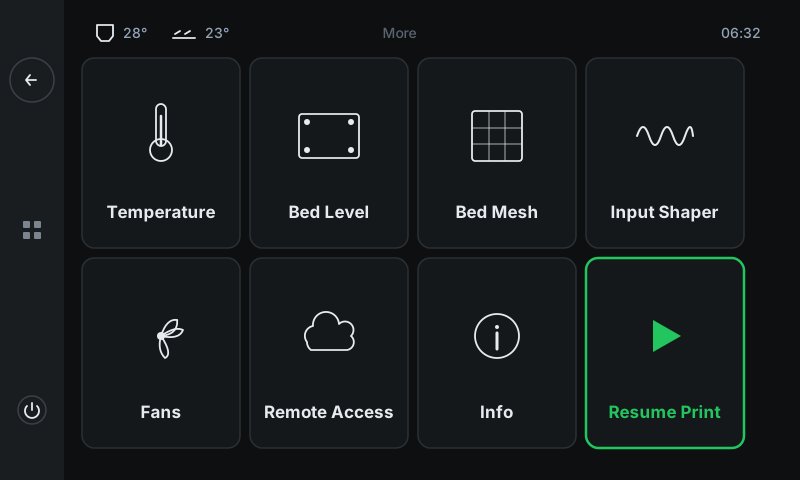
Heater control + presets.
Opens the Temperature panel — set or clear targets for the hotend, bed, and chamber, plus material presets.
Manual + auto bed levelling.
Opens the Bed Level panel with the four-corner knob workflow and the Level My Bed (Z-tilt adjust) automation. See the Bed Level reference.
Per-material first-layer mesh.
Opens the Bed Mesh panel with one card per temperature range (60-80 / 80-100 / 100-120 °C). See the Calibrate bed mesh walkthrough.
Vibration / ringing tuning.
Opens the Input Shaper panel — adjust X / Y frequency and shaper type, or run the auto-calibrate flow. See the Input Shaper reference.
Part-cooling + chamber fans.
Opens the Fans panel — set the part-cooling fan speed and chamber fan target temperature. The status row at the bottom shows the auto-managed firmware fans for monitoring.
3DISM Cloud pairing.
Opens the Remote Access panel — see pairing status, get a code, pair with 3DISM Cloud for email notifications + remote monitoring. See the Cloud Connect walkthrough.
Printer ID + version + system status.
Opens the Info panel — printer serial number, model, firmware version, Klipper state, SBC details. Useful when filing a support ticket.
Power-loss recovery.
Opens the Resume Print panel. Always green-bordered to stand out as the only action tile in the More menu. The panel inside tells you whether there's data to recover. See the Power loss recovery walkthrough.