Panel reference
Network panel
Connect to WiFi · view IP
Where Settings menu (gear icon in the side panel's quick menu) → Network
Controls 5
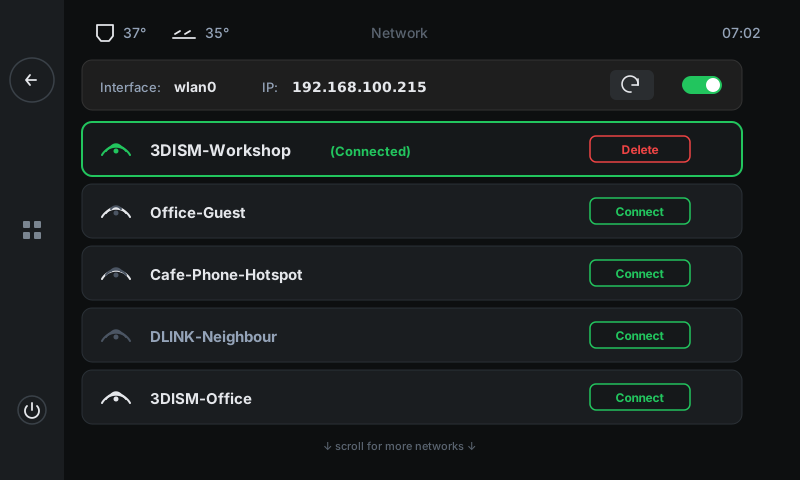
The WiFi connection panel. Shows the printer's current network state (interface, IP), lists every WiFi network nearby, and lets you connect / disconnect / forget saved networks. Use this when moving the printer to a new room with a different WiFi, or for first-time WiFi setup if the machine wasn't pre-provisioned.
1
2
3
4
5
1
Interface + IP
Current network state at a glance.
Which wireless interface the printer is using (usually wlan0 on the BTT CB1), and the LAN IP that the router gave it. The IP is what you'll type into a browser to open Mainsail or to SSH in. Copy or photograph this number for support tickets.
2
Refresh
Re-scan for nearby networks.
Forces a fresh WiFi scan. The list below refills with whichever SSIDs are currently visible. Use this if you just turned on a hotspot and it doesn't appear yet, or if the list looks stale.
3
WiFi toggle
Master on/off.
Turns the WiFi radio off (printer becomes LAN-only, only reachable over wired Ethernet if connected) or on. Green = on. Useful for diagnosing whether a connectivity issue is WiFi-specific or network-wide.
4
Connected network
The SSID you're on right now.
Always at the top, green-bordered, marked '(Connected)'. The signal-strength icon shows the live signal quality. Tap Delete to forget the saved password — useful before handing the printer to a new owner, or when troubleshooting auth issues.
5
Available networks
Every WiFi nearby that you're not currently on.
Sorted by signal strength (strongest first). Each row shows the signal-strength icon + SSID + a Connect button. Tap Connect to switch to that network — the printer prompts for a password if one's needed, then drops the existing connection and joins the new one.
Good to know
- How to connect to a new WiFi network: open Network → wait for the scan to complete → tap Connect on the SSID you want → type the password on the on-screen keyboard → confirm. The printer drops the old connection, joins the new one, and the IP at the top updates to reflect the new network's DHCP lease.
- How to find the printer's IP: three places — (a) the Home screen's bottom status row, (b) the Info panel 'IP Address' card, (c) the top of this Network panel. Any one works.
- WiFi requires NetworkManager (the BTT CB1 ships with it). If the panel shows 'No wireless interface has been found', the SBC's WiFi driver isn't loaded — open a support ticket.
- On 3DISM QALAM, the WiFi tile on the Home screen actually opens the Remote Access panel (cloud pairing), not this one. To reach the actual WiFi connection panel, use the side panel's settings menu → Network.