1
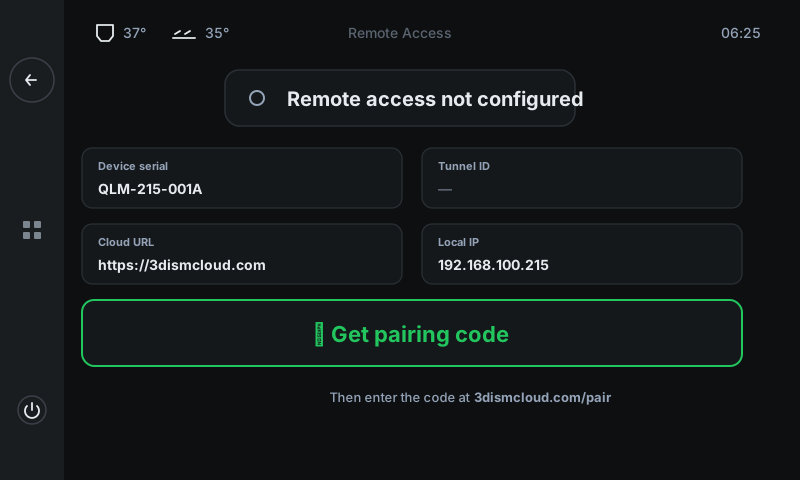
Status badge
Paired or not.
'Remote access not configured' (grey) = no cloud link. 'Paired with you@example.com' (green) = good to go. Tap the badge when paired to unpair.
Panel reference
3DISM Cloud pairing
Pair your printer with 3DISM Cloud for email notifications + remote monitoring. The status page shows the printer's identity (serial, IP), the cloud URL, and a single button to start the pairing flow.
Paired or not.
'Remote access not configured' (grey) = no cloud link. 'Paired with you@example.com' (green) = good to go. Tap the badge when paired to unpair.
Device + network info.
Device serial (your printer's unique ID), Tunnel ID (set after pairing), Cloud URL (where to enter the code), Local IP (LAN address). Useful for support tickets.
Start pairing.
Asks 3DISM Cloud for a one-shot code and switches to the code page. The code is valid for 10 minutes — type it into 3dismcloud.com/pair on any device.