Panel reference
Home screen
Your main dashboard
Where Default panel when the printer boots
Controls 9
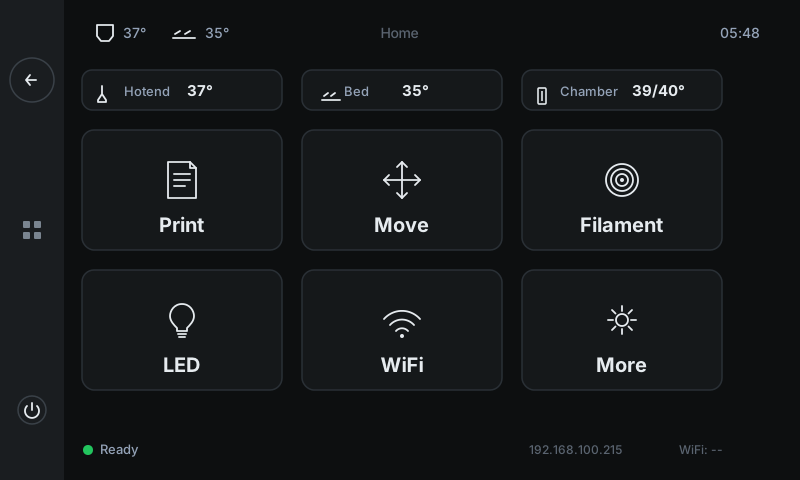
The home screen is where every session starts and where you return between tasks. Six big tiles cover everything you'll do day-to-day — printing, filament changes, manual movement, lighting, network, and a 'More' tile for everything else. A live temperature strip across the top lets you check the heaters from any panel.
1
2
3
4
5
6
7
8
9
1
Live temperature strip
Hotend / Bed / Chamber actual + target.
Three cards at the top show the live + target temperature of every heater on the printer. Tap any card to jump to the Temperature panel and set or clear a target. This strip persists across most other panels too — you can glance at the heaters without leaving what you're doing.
2
Print
Opens the file browser.
Tap to open the Print file browser. You'll see every G-code file uploaded to the printer as a card with a slicer thumbnail, filename, size, and upload date. Tapping a card starts the print immediately — the printer homes, heats, and runs a purge line before the first layer.
3
Move
Manual axis control.
Opens the Move panel for jogging the toolhead manually. Used for diagnostics, bed alignment, or freeing a stuck print. Always homes first if you haven't already.
4
Filament
Guided load / unload.
Opens the Filament panel. From there you pick the material, the printer auto-heats to the right temperature, and you tap Load or Unload. See the Change filament walkthrough.
5
LED
Toggle the chamber light.
Single tap toggles the chamber light on / off. The tile icon changes to indicate state.
6
WiFi
Opens Remote Access (cloud pairing) — NOT the WiFi setup panel.
Despite the label, this tile on 3DISM QALAM opens the Remote Access panel for pairing the printer with 3DISM Cloud (email notifications + remote monitoring). To actually connect to a different WiFi network, open the Network panel from the side panel's settings menu — that's where the SSID list + Connect buttons live.
7
More
Secondary controls.
Opens the More menu — a 4×2 grid of less-frequent panels: Temperature, Bed Level, Bed Mesh, Input Shaper, Fans, Remote Access, Info, Resume Print. See the More menu reference.
8
Side panel
Back / quick menu / power.
Always-visible side strip with Back (returns to previous panel), Quick Menu (shortcuts), and Power (shutdown / restart). Available from every screen, not just Home.
9
Status row
Printer state + LAN IP + WiFi.
Status indicator (green ● when ready, amber while heating, etc.), the printer's LAN IP address, and current Wi-Fi state. Useful for confirming the machine is on the network and reachable.
Good to know
- Home is the only panel without a 'Back' arrow — there's nowhere further back to go.
- During an active print, Home shows a slim PRINTING / PAUSED banner above the tile grid with the current job's percentage. Tap the banner to jump straight to Job Status.
- Where to find your printer's IP address: the bottom status row of Home (shown here as callout 9) is the quickest spot. Same value also appears at the top of the Network panel and on the Info panel. You'll need this IP to open Mainsail in a browser (
http://<IP>) or to SSH in.
- Connecting to a different WiFi network: the WiFi tile here goes to cloud pairing, not WiFi setup. For actual WiFi connection, open the Network panel via the side-panel's settings/quick menu.